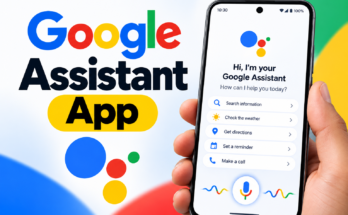
Google Assistant is a virtual assistant developed by Google that helps users interact with their smartphones, access information, and manage everyday tasks using voice commands. It can perform supported actions such as setting alarms, checking the weather, opening applications, and controlling compatible smart-home devices.
However, Google’s AI assistant ecosystem is changing. Gemini is replacing Google Assistant in many experiences, although availability and functionality depend on your device, region, and Google’s current rollout.
In this guide, you’ll learn about Google Assistant’s features, how to access available assistant tools on your smartphone, useful voice commands, and the key differences between Google Assistant and Gemini.
What Is Google Assistant?
Google Assistant is a virtual assistant that allows users to access information and control supported functions through voice or text commands. It works with compatible Android smartphones, Google services, and connected devices.
Its traditional capabilities include:
- Sending text messages
- Making phone calls
- Opening applications
- Searching for information
- Setting alarms and reminders
- Playing music and videos
- Finding locations and directions
- Controlling compatible smart-home devices
For example, you might say:
“Hey Google, what’s the weather today?”
“Hey Google, open YouTube.”
“Hey Google, set an alarm for 7 AM.”
The assistant processes supported requests and responds with relevant information or performs the requested action when available.
| Feature | Google Assistant | Gemini |
|---|---|---|
| Quick voice commands | Traditional core strength | Supported, depending on configuration |
| Alarms and timers | Supported on compatible devices | Capabilities depend on device and settings |
| Conversational questions | Supported | Designed for more advanced AI conversations |
| Writing and brainstorming | More limited | A major use case |
| Smart-home control | Supported devices | Supported capabilities vary |
| Availability | Depends on Google’s current support | Depends on device, account, region, and rollout |
Which one should you use? For straightforward commands, the traditional Assistant is familiar and practical. For longer questions, writing help, and conversational AI tasks, Gemini may be more suitable. Some features may work differently or require additional configuration in Gemini.
Key Features of Google Assistant
1. Voice Control for Smartphones
Voice commands let you perform supported actions without manually navigating through menus.
You can ask the assistant to make calls, send messages, open applications, or access other smartphone functions.
2. Instant Access to Information
Google Assistant can help you find information about weather, general knowledge, sports, and directions.
For example, you can ask, “What’s the weather today?” or “How far is the nearest shopping mall?”
The answers and available features depend on your location, settings, and connected services.
3. Smart-Home Device Control
Google Assistant supports compatible smart-home devices, including lights, speakers, televisions, and other connected products.
Example commands include:
“Hey Google, turn off the lights.”
“Hey Google, play music on the speaker.”
The available controls depend on device compatibility and how your smart-home system is configured.
4. Alarms, Reminders, and Timers
The assistant can help you manage everyday tasks with supported alarms, reminders, and timers.
For example:
“Hey Google, set an alarm for 7 AM.”
“Hey Google, set a timer for 10 minutes.”
“Hey Google, remind me to call my friend at 6 PM.”
Recurring reminders and other scheduling functions may vary by device and service.
5. Navigation and Directions
Google Assistant can work with Google Maps to help you find destinations and access navigation features.
You can try commands such as:
“Hey Google, navigate home.”
“Hey Google, find a petrol station nearby.”
Available features depend on location permissions, Maps configuration, and regional support.
Quick-Start Google Assistant Voice Commands
Use this table to try common commands on a compatible device. Exact wording and results can vary.
| Task | Example voice command |
|---|---|
| Check the weather | “Hey Google, what’s the weather today?” |
| Open an app | “Hey Google, open YouTube.” |
| Set an alarm | “Hey Google, set an alarm for 7 AM.” |
| Start a timer | “Hey Google, set a timer for 10 minutes.” |
| Make a call | “Hey Google, call [contact name].” |
| Send a message | “Hey Google, send a message to [contact name].” |
| Play music | “Hey Google, play music.” |
| Find directions | “Hey Google, navigate to [destination].” |
| Check the time | “Hey Google, what time is it?” |
| Control smart lights | “Hey Google, turn off the lights.” |
<text color=”secondary” size=”sm”>Note: Replace the bracketed examples with the actual contact or destination. Some commands require permissions, an internet connection, or a compatible app or device.</text>
How to Get Google Assistant on Your Smartphone
Many Android smartphones include Google services, but the available assistant experience depends on Google’s current product support.
Follow these steps to check what is available:
- Open the Google Play Store.
- Search for the official Google app or Google Gemini app.
- Install or update the relevant app if necessary.
- Open the app and follow the on-screen setup instructions.
- Sign in to your Google account if prompted.
- Check the available assistant and voice settings.
If your device supports traditional Google Assistant, you may be able to enable voice activation using “Hey Google.” If Gemini is available as your assistant, follow its setup instructions instead.
Important: Installing the Google app does not guarantee that every Assistant feature will be available. Some features may have been replaced, moved, or restricted as Google transitions to Gemini.
How to Enable “Hey Google”
On compatible devices, voice activation can allow you to interact with the assistant without opening the app manually.
The general process is:
- Open the Google app or your current assistant app.
- Open its settings.
- Look for Voice, Hey Google, or Voice Match, if available.
- Enable the relevant option.
- Follow any voice-training instructions shown on screen.
The exact menu names and availability vary by device and assistant experience. If you cannot find the option, check your phone’s current assistant settings and official Google support information.
Benefits of Using an AI Assistant
Digital assistants can make everyday smartphone use more convenient.
- Save time: Complete supported tasks without navigating through multiple menus.
- Hands-free convenience: Use voice interaction when your hands are occupied, provided it is safe to do so.
- Better organization: Set alarms, timers, and reminders.
- Smart-device integration: Control compatible connected devices.
- Access information: Ask questions or request navigation assistance.
- AI-powered help: With Gemini, access additional capabilities such as drafting text, brainstorming, and explaining complex topics.
Never interact with your phone while driving unless the method is safe and legally permitted in your location.
How Google Assistant Can Help in Everyday Life
For Students
Students can set study timers, schedule reminders, check information, and organize daily routines. Gemini can also help explain topics, generate practice questions, and brainstorm ideas.
For Professionals
Professionals can use supported voice commands for calls, reminders, directions, and routine tasks. Gemini may also help draft emails, summarize information, and develop ideas.
For Home Users
At home, users can control compatible smart devices, play entertainment, set timers, and access useful information through voice commands.
The available functions depend on your device, applications, account, and regional support.
Privacy and Security Considerations
Privacy matters when using any voice assistant. Google provides account and device settings for managing certain types of activity and personal information.
Depending on your configuration, you may be able to review activity history, manage voice-related data, and delete stored activity.
For better privacy management:
- Review your Google Account privacy settings.
- Check microphone permissions for relevant applications.
- Review available voice and activity controls.
- Delete stored activity when appropriate.
- Understand how your selected assistant handles requests and personal information.
Avoid sharing passwords, financial details, or other sensitive information unnecessarily with any digital assistant.
The Future of Google Assistant and AI Assistants
Google’s AI assistant ecosystem is evolving toward more conversational and capable AI experiences. Gemini is taking on many tasks previously associated with Google Assistant, while available features continue to depend on device compatibility, account settings, language, and regional rollout.
Future developments may improve conversational interaction, task automation, application integration, and connected-device control. The exact features available will depend on Google’s product development and support decisions.
Final Thoughts
Google Assistant has made smartphone interaction more convenient through voice commands for tasks such as alarms, reminders, information searches, navigation, and smart-home control.
However, in 2026, it is important to distinguish between traditional Google Assistant and Gemini. Google is transitioning many assistant experiences to Gemini, which offers a broader set of conversational AI capabilities.
Check your smartphone’s current assistant settings to see which experience is available. Choose the option that best suits your needs, and review its permissions and privacy settings before using it.
Explore the official apps:
Frequently Asked Questions
Is Google Assistant still available in 2026?
Availability depends on Google’s current rollout and your device. Google is transitioning many traditional Assistant experiences to Gemini, so some phones may offer a different assistant experience.
What is the difference between Google Assistant and Gemini?
Google Assistant is the traditional voice assistant focused on quick commands and supported device functions. Gemini is Google’s newer AI assistant experience, designed for broader conversational tasks, writing, reasoning, and supported integrations.
Can I use “Hey Google” with Gemini?
Voice activation may be available on compatible devices, depending on the app, settings, language, and account configuration. Check the voice settings for your current assistant.
Is Google Assistant free?
Core assistant features are generally available without a separate subscription on supported devices. Some Gemini features or advanced AI capabilities may have different access requirements.
Why is Google Assistant not working on my phone?
Possible reasons include outdated applications, disabled microphone permissions, incorrect voice settings, network problems, device incompatibility, or a transition to another assistant experience. Check your app updates and assistant settings first.
Can Google Assistant control smart-home devices?
Yes, traditional Google Assistant supports compatible smart-home devices. Gemini’s device-control capabilities depend on supported integrations and your configuration.