WhatsApp is one of the most popular messaging applications, allowing Android users to send messages, make voice and video calls, share photos, and stay connected with friends and family. If you want to personalize your WhatsApp experience, you can use your own pictures as chat wallpapers, profile photos, or home-screen widgets.
Can you add your photo directly to the WhatsApp home screen? Not freely within WhatsApp’s main interface. However, you can personalize your profile and chats or display your photo beside the WhatsApp icon using Android’s home-screen customization features.
In this guide, you’ll learn four simple ways to add your photo to WhatsApp on Android in 2026.
Quick Comparison: Which Method Should You Use?
| Method | Where Your Photo Appears | Best For |
|---|---|---|
| Chat wallpaper | Inside WhatsApp conversations | Personalizing chats |
| Profile picture | Your WhatsApp profile | Showing your photo to contacts |
| Photo widget | Android home screen | Displaying a photo beside WhatsApp |
| Home-screen customization | Your phone’s home screen | Creating a personalized layout |
The available options depend on your WhatsApp version, Android version, smartphone manufacturer, and installed applications.
Method 1: Set Your Photo as a WhatsApp Chat Wallpaper
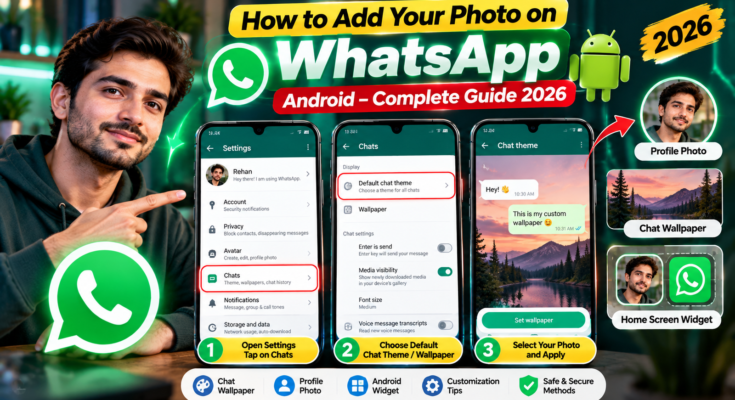
One of the easiest ways to personalize WhatsApp is to use your favorite picture as a chat wallpaper.
Follow these steps:
- Open WhatsApp on your Android smartphone.
- Open the three-dot menu, if available, and select Settings.
- Tap Chats.
- Find the Default chat theme, Wallpaper, or relevant appearance setting available in your version.
- Choose the option to select a photo from your gallery, if available.
- Select your preferred photograph.
- Adjust the image if cropping or positioning controls are available.
- Apply the changes.
Depending on your WhatsApp version, you may be able to customize the default appearance of your conversations or change the wallpaper for an individual chat.
Tips for Choosing a Good Wallpaper
For a comfortable messaging experience, choose an image that does not make text difficult to read.
- Use a clear, high-quality photograph.
- Avoid images with too many distracting details.
- Choose a darker or less busy background when appropriate.
- Check how the image looks when cropped to fit your screen.
A suitable wallpaper makes your conversations feel more personal without interfering with readability.
Method 2: Add Your Photo as Your WhatsApp Profile Picture
If you want your contacts to recognize you easily, adding a personal profile picture is a simple option.
Follow these steps:
- Open WhatsApp.
- Go to Settings.
- Tap your profile name or current profile picture.
- Select the edit option for your photo.
- Choose a picture from your phone’s gallery.
- Adjust the crop and positioning.
- Save your changes.
Your selected image will appear as your WhatsApp profile picture according to your privacy settings.
You can use a personal photograph, a professional headshot, or another suitable image that represents you.
Method 3: Add a Photo Widget Near Your WhatsApp Icon
If you want your picture to appear beside your WhatsApp icon, an Android photo widget may be the best solution.
This method customizes your phone’s home screen rather than WhatsApp itself.
Follow these steps:
- Return to your Android home screen.
- Press and hold an empty area of the screen.
- Select Widgets, if available.
- Look for a Photos, Gallery, or compatible photo-widget option.
- Add the widget to your home screen.
- Choose your preferred picture if the widget supports photo selection.
- Adjust the widget’s size and position.
- Place it near your WhatsApp icon.
The exact steps depend on your smartphone manufacturer, Android version, and installed applications.
Some phones include built-in photo widgets, while others may require a compatible widget application.
Method 4: Customize Your Android Home Screen
Android offers several options for personalizing your home screen. Depending on your device, you may be able to change:
- Home-screen wallpaper
- Application icons
- Widget styles
- Icon sizes and layouts
- Launcher appearance
- Shortcut positions
You can combine a favorite photograph, a matching wallpaper, and a WhatsApp shortcut to create a personalized home-screen design.
Some smartphone manufacturers also provide built-in themes and icon customization tools. Check your phone’s wallpaper, display, or home-screen settings to explore the available options.
Remember that these changes affect your Android interface, not necessarily the internal appearance of WhatsApp.
Avoid Modified WhatsApp Applications
You may encounter unofficial WhatsApp versions that advertise extra themes, custom interfaces, or advanced personalization features.
Although these applications may look attractive, modified versions can introduce privacy and security risks. They may expose personal information, lack reliable security updates, or violate WhatsApp’s terms.
For a safer experience, use the official WhatsApp application and Android’s built-in customization features whenever possible.
Avoid installing unknown APK files simply to access additional photo or theme options.
Keep WhatsApp Updated
WhatsApp regularly introduces features, interface improvements, and security updates. The customization options available to you may change over time.
To check for updates:
- Open the Google Play Store.
- Search for WhatsApp.
- Open the official application listing.
- Tap Update if an update is available.
Keeping WhatsApp updated helps ensure that you have access to supported features and relevant security improvements.
Final Thoughts
Adding your photo to WhatsApp on Android is possible in several ways, depending on where you want the picture to appear.
If you want to personalize your conversations, choose a custom chat wallpaper. If you want your contacts to see your picture, update your WhatsApp profile photo. If you want a picture displayed beside the WhatsApp icon, try an Android photo widget.
Although WhatsApp does not generally let you place a personal photo freely throughout its main interface, combining its built-in features with Android’s customization tools can create a more personalized experience.
Choose the method that best suits your needs, check which features your phone supports, and avoid unofficial applications that could compromise your privacy.
Frequently Asked Questions
Can I put my photo directly on the WhatsApp home screen?
WhatsApp does not generally offer a feature for freely placing a personal photo on its main interface. However, an Android photo widget can display your picture beside the WhatsApp icon on your phone’s home screen.
Can I use my own photo as a WhatsApp wallpaper?
Yes. WhatsApp’s chat customization features can allow you to select images from your device, depending on your app version and available settings.
Can I add a photo next to the WhatsApp icon?
Yes, potentially. You can use a photo or gallery widget to display an image near the WhatsApp icon. Availability depends on your Android phone and launcher.
Are modified WhatsApp applications safe?
Unofficial WhatsApp modifications can create privacy and security risks. Using the official application is generally the safer option.
Will these methods work on every Android phone?
Not necessarily. Customization options vary depending on the phone manufacturer, Android version, launcher, installed applications, and WhatsApp version.