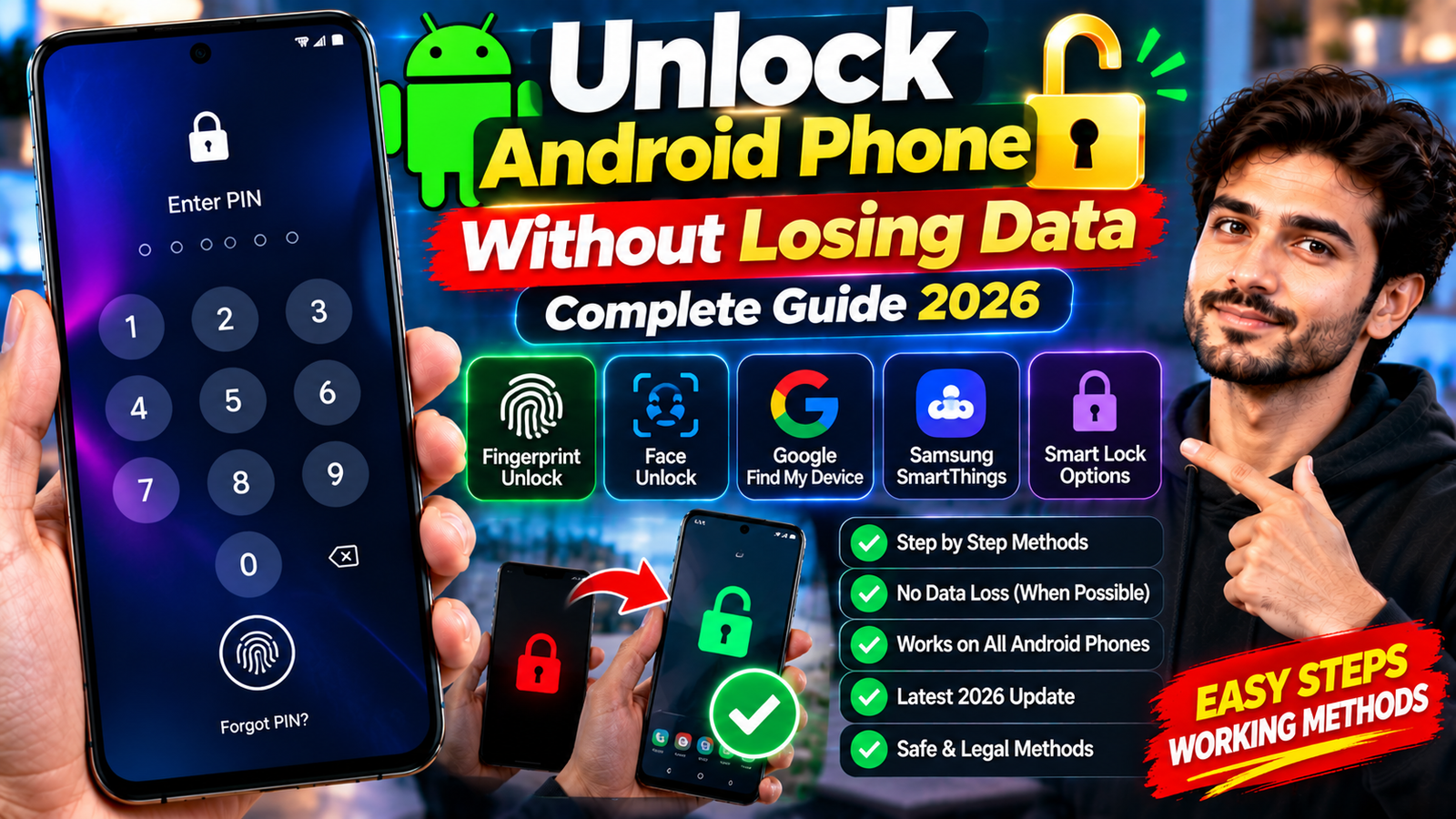
Getting locked out of your Android smartphone can be stressful, especially when it contains important photos, videos, contacts, messages, and documents. Fortunately, some recovery methods may help you regain access without immediately performing a factory reset.
However, modern Android security is designed to protect your personal information. There is no universal method to remove a forgotten PIN, password, or pattern while guaranteeing that all your data remains intact.
In this guide, you’ll learn how to unlock an Android phone without losing data, which recovery methods you can try, and what to check before performing a factory reset.
Can You Unlock an Android Phone Without Losing Data?
Yes, in some situations. Your available options depend on your phone model, Android version, and security features configured before you were locked out.
Several factors determine which recovery methods may work:
- Android version and security updates
- Smartphone manufacturer and model
- Previously configured fingerprint or face recognition
- Existing trusted-unlock settings
- Access to your Google or manufacturer account
- Available cloud backups
- Official recovery options supported by your device
If no supported recovery method is available, Google generally requires you to erase and set up the device again to regain access.
Before considering a factory reset, try the following methods.
Method 1: Try Fingerprint or Face Unlock
If you previously enabled biometric authentication, check whether your phone still allows you to unlock it using your fingerprint or face.
Depending on your device, available options may include:
- Fingerprint recognition
- Face Unlock
- Iris recognition on certain older devices
However, biometric authentication does not always replace your primary screen lock. Android may require your PIN, pattern, or password after a restart, following certain security events, or after a specified period.
If your phone explicitly requires your primary screen lock, fingerprint or face recognition may no longer be sufficient.
Method 2: Check Extend Unlock
Some Android devices support a feature called Extend Unlock, which can keep your phone unlocked under previously configured trusted conditions.
Depending on your device and software version, these conditions may include:
- Trusted locations
- Trusted Bluetooth devices
- On-body detection
For example, if you previously configured a trusted Bluetooth device, your phone may remain unlocked while the required conditions are satisfied.
Keep in mind that this feature generally needs to be configured before you lose access. It is not a universal method for bypassing a forgotten PIN or password.
Method 3: Use Google Find Hub
Google Find Hub helps users locate and secure their Android devices. Depending on your device and configuration, its features may include locating your phone, playing a sound, marking it as lost, or remotely erasing it.
You can access the service here:
Google Find Hub — Find, secure, or erase your device
Important: Google Find Hub is not designed to remove a forgotten screen PIN, pattern, or password while preserving your phone’s locally stored data.
Avoid selecting the remote erase option if your priority is to preserve unbacked-up files. Remote erasure deletes locally stored information.
Method 4: Check Samsung’s Official Recovery Options
If you own a Samsung Galaxy smartphone, review Samsung’s official support and device-finding services.
Depending on your phone model, account configuration, and software version, Samsung Find or SmartThings Find may help you locate, secure, or erase a compatible device.
Visit the official support page:
Samsung Support — Locate a lost Galaxy phone or tablet
Remember that remote device-management services should not be assumed to remove a forgotten screen lock without erasing data. Available features vary between devices and software versions.
Method 5: Contact Your Phone Manufacturer
Different smartphone manufacturers offer different support and recovery options. Before resetting your device, consult the official support website for your exact phone model.
You may need to check documentation for:
- Samsung
- Xiaomi
- Motorola
- HONOR
- Huawei
- OPPO
- Vivo
- OnePlus
- Google Pixel
Use your exact model number when searching for instructions. Recovery options available for one phone may not work on another, even if both use Android.
If your phone contains valuable information that has not been backed up, consider contacting an authorized service center before attempting a reset. Ask whether any supported recovery options can preserve your local data.
Method 6: Check Your Existing Backups
Before taking any action that could erase your phone, check whether your important files have already been backed up or synchronized.
You can review these services from another device:
- Google Photos: Photos and videos that were successfully backed up
- Google Drive: Uploaded documents and other files
- Google Contacts: Contacts synchronized with your Google account
- Google One or Android backup: Supported device settings and app data
- Samsung Cloud: Supported synchronized information
- OneDrive: Files and photos previously uploaded or synchronized
- Other cloud services: Data stored through your manufacturer or individual applications
Useful links:
Remember that not every file is automatically backed up. Confirm that your information is actually available in the relevant account before assuming it can be restored.
A factory reset removes locally stored data that has not been preserved elsewhere.
Method 7: Be Careful With Android Unlocking Software
Some third-party programs advertise Android screen-lock removal or data-preserving recovery. Examples include DroidKit, Dr.Fone Screen Unlock, Tenorshare 4uKey for Android, UnlockGo Android, and PassFab Android Unlock.
However, their capabilities and limitations differ.
Before purchasing or installing an unlocking tool, consider these factors:
- Your exact smartphone model
- Android version and security patch level
- Device encryption
- Manufacturer restrictions
- Bootloader configuration
- Whether the proposed method erases data
Do not assume that a third-party tool can unlock every Android phone without data loss. A program that supports one model may require a factory reset on another.
Check the vendor’s current compatibility information and privacy policy before proceeding. Avoid tools that promise guaranteed results without clearly explaining their limitations.
Method 8: Try the Forgot Pattern Feature on Older Android Phones
Older Android devices offered a feature called Forgot Pattern, which could allow users to regain access using the Google account previously associated with the device.
This method applied to certain devices running Android 4.4 or earlier. It is not a general solution for modern Android smartphones.
On a supported older device, the process was generally:
- Enter an incorrect pattern several times.
- Select Forgot Pattern, if the option appears.
- Sign in using the associated Google account.
- Follow the instructions to establish a new screen lock.
If your phone does not display this option, do not assume that repeated incorrect attempts will unlock it.
What Doesn’t Work Reliably on Modern Android?
Older online tutorials may recommend methods such as:
- ADB commands intended to remove the screen lock
- Emergency-call exploits
- Lock-screen crash techniques
- Unverified APK bypass tools
- Pattern-bypass applications
- Outdated Android Device Manager unlocking options
- One-click screen-lock bypass utilities
These methods may depend on older Android versions, specific vulnerabilities, or configurations that are no longer available.
Modern Android security uses encryption and other protections to prevent unauthorized access to personal information. Avoid installing unknown applications or following instructions that promise guaranteed access without explaining the risks.
What to Check Before a Factory Reset
Before performing a factory reset, review the following checklist:
- Check whether fingerprint or face unlock still works.
- Review any previously configured Extend Unlock features.
- Consult official recovery instructions for your exact phone model.
- Check Google Photos, Drive, Contacts, and other backup services.
- Confirm that you know the Google account previously associated with the phone.
- Understand that unbacked-up local files may be permanently lost.
If your data is extremely valuable and no backup exists, contact an authorized service center before proceeding.
What If None of the Recovery Methods Work?
If you have forgotten your primary screen lock and no supported recovery option is available, a factory reset may be the only official way to regain use of the device.
Before proceeding:
- Check your Google Photos, Drive, Contacts, and other backup services.
- Confirm that you know the Google account previously associated with your phone.
- Review the manufacturer’s official reset instructions.
- Understand that locally stored information not backed up may be permanently lost.
After the reset, you may be able to restore compatible information from an existing backup.
Some Android devices also use Factory Reset Protection, which may require verification through a Google account previously associated with the device. Make sure you know your account credentials before resetting your phone.
How to Prevent Losing Access in the Future
Once you regain access to your device, take these precautions to protect your information.
Enable Automatic Backups
Configure Google backup and Google Photos where appropriate. Check that your important information is actually being synchronized.
Keep Your Google Account Accessible
Make sure you know the email address and password associated with your smartphone. Keep your account recovery information up to date.
Enable Biometric Authentication
Fingerprint or face recognition can make everyday unlocking more convenient, although your primary screen lock will still be required in certain situations.
Configure Trusted-Unlock Features Carefully
If your device supports Extend Unlock, review whether its available features suit your security needs.
Synchronize Important Contacts and Files
Avoid keeping the only copy of important documents, photographs, or contacts on your phone’s internal storage.
Keep Recovery Information Updated
Maintain a current recovery email address and phone number for your Google account and other important services.
Frequently Asked Questions
Can I unlock my Android phone without a factory reset?
Sometimes. Previously configured biometric authentication or trusted-unlock features may help. However, modern Android generally does not provide a universal official method for removing a forgotten primary screen lock while preserving all local data.
Can Google unlock my Android phone remotely?
Google Find Hub can help locate, secure, or erase a device, but it is not designed to remove a forgotten screen PIN or password while preserving local data.
Is there a free way to unlock Android without losing data?
If an already-configured biometric or trusted-unlock feature works, you may regain access without paying for software. Otherwise, the available options are limited and depend on your device.
Does Android unlocking software always preserve data?
No. Data preservation depends on the phone model, Android version, security configuration, and recovery method supported by the software.
Can I use my Google account to bypass a forgotten PIN?
The old Google-account-based Forgot Pattern feature was limited to certain devices running Android 4.4 or earlier. It is not a general recovery method for modern Android phones.
Will a factory reset delete my photos?
A factory reset deletes locally stored photos and other information that has not been backed up. Photos already synchronized with Google Photos or another cloud service may remain available in that account.
Final Thoughts
Being locked out of an Android smartphone does not always mean you must immediately erase everything. First, check previously configured biometric authentication, trusted-unlock features, manufacturer support options, and existing backups.
If none of these options works, be cautious with websites promising a guaranteed way to unlock any Android phone without losing data. Modern Android security is specifically designed to prevent unauthorized screen-lock bypasses, and a factory reset may ultimately be necessary.
The safest approach is to identify your exact phone model and Android version before choosing a recovery method.